Disclaimer: This post is for educational purposes only. All torrent files, sources, and content referenced here are from legal and authorized sources, including open-source software, Linux distributions, etc.Note: This post is for getting started with BitTorrent and setting up a torrent client on your desktop. If you're looking for a headless deployment, check out [Seedbox Setup] instead.# I. What is BitTorrent?
Imagine you want to give a 5 GB file to 10 people.
It would be more than enough to use a cloud drive or a single-server setup. You could put it on a server and let everyone download it.
But what if all 10 people decide to download the file at the same time, and the server only has a 200 Mbps connection? Now you may think of moving to a CDN Content Delivery Network. A distributed network of servers that delivers content from locations closer to users, helping reduce latency and improve connection speeds. (Instead of everyone downloading from one server, people can download from a server closer to them.) , which can spread the load across multiple edge nodes Servers located in different geographic locations that handle requests closer to the end user. (They help deliver content with lower latency by processing or serving it closer to where users are.) .
What if it's a 300 GB file or maybe even a 10 TB file? Distributing it from a single server is simply a headache, and a CDN can become costly with large amounts of traffic.
So what if the people downloading the file could help each other?
What if the people who already downloaded part of the file could help by giving those parts to everyone else?
Suddenly, a single point of sharing starts to grow into a distributed volunteer network. It's no longer one person sharing (seeding 🟢 Continuing to send pieces to other peers after downloading the complete torrent. (You've finished downloading, but you're still contributing to the network by uploading pieces of the file to other peers. Acting as a "server".) ) the file, but two, ten, fifty, hundreds, or even more. The load is spread across everyone. And as the number of people who have the file grows, more peers Other torrent clients participating in the same torrent. start to share.
That's basically the BitTorrent protocol. (Thanks to Bram Cohen The American computer programmer who created the BitTorrent protocol in 2001. .)
# II. What is a torrent file?
Despite the name, a .torrent file usually isn't the actual content we're downloading.
It's more like a set of instructions and information about the content. If we were to use regular HTTP download A file downloaded over HTTP or HTTPS from a web server. (Usually happens when a browser or download client downloads a file directly from a server using a web connection.) terms, the .torrent file is kind of like a download link for the actual file.
It tells a torrent client things such as what files are being shared and how the content can be identified and verified.
There are also magnet links, which can be used instead of downloading a .torrent file.
Take the Ubuntu Desktop 26.04 LTS (64-bit) (Intel or AMD 64-bit)
ISO
A file that contains an entire copy of a disc, commonly used for operating system installers. (For example, an Ubuntu ISO can be used to install Ubuntu on a computer.)
as an example.
The .torrent file for this ISO can be downloaded from the Ubuntu website. And the corresponding magnet link looks like this:
magnet:?xt=urn:btih:3L6IYB3MULZ62N3O5LT4O2QNNPRECXCF&dn=ubuntu-26.04-desktop-amd64.iso&xl=6518974464&tr=https%3A%2F%2Ftorrent.ubuntu.com%2Fannounce
# III. Desktop client setup + Add a torrent
One of the most popular torrent clients is qBittorrent. For a desktop-based qBittorrent setup, simply download the client here and install it.
To add a torrent to qBittorrent, go to File, and select Add Torrent File or Add Torrent Link. Add Torrent File is for .torrent file, while Add Torrent Link allows you to paste a magnet link.
As soon as the torrent is added, you'll see it pop up in the list.
🧪 Try it yourself: download a test file using your torrent client (Copy and paste the magnet link below into your qBittorrent).
magnet:?xt=urn:btih:8d60cfa5b770ebf9a04389710b6ff39fdbf2164e&dn=1Gb.dat&tr=udp%3A%2F%2Fzer0day.ch%3A1337%2Fannounce&tr=udp%3A%2F%2Ftracker.publictracker.xyz%3A6969%2Fannounce&tr=udp%3A%2F%2Ftracker.opentrackr.org%3A1337%2Fannounce&tr=udp%3A%2F%2Ftracker.torrent.eu.org%3A451%2Fannounce&tr=udp%3A%2F%2Fopen.stealth.si%3A80%2Fannounce&tr=udp%3A%2F%2Ftracker.qu.ax%3A6969%2Fannounce&tr=udp%3A%2F%2Ftracker.dler.org%3A6969%2Fannounce# IV. Port forwarding for home networks (Optional)
Port forwarding allows incoming connections from the internet to reach a device on the local network. Torrenting doesn't necessarily require this function to work, but it can be useful for accepting incoming connections and connecting to other peers. Without port forwarding, fewer peers may be able to reach you directly, which can result in slower connection speeds.
A public IP is usually required if you want to use port forwarding 🟢 A router configuration that allows incoming connections from the internet to reach a specific device on your local network. (It basically tells the router where incoming traffic should go. If a peer can't accept incoming connections, it may have fewer opportunities to connect directly to other peers, which can result in limited download and upload speeds.) . First, check whether you have a public IP address.
Before checking, make sure you are not connected to a VPN or proxy, as these can cause the IP address shown by the checker to be different from your actual home connection.
Open your browser and visit an IP-checking website like this to find your public IP address. Then log in to your home router and find its WAN IP address. (The exact location varies depending on the router manufacturer and model, so you may need to look under Status, Internet, WAN, or a similar section.)
Compare the two IP addresses:
-
If they match: it is very likely that you have a public IP address and can use port forwarding.
-
If they do not match: your router is likely behind another layer of NAT ⚠️ Network Address Translation: A system commonly used by home ISPs/routers to let multiple devices share one public IP address. (It's one reason other people on the internet may not be able to directly connect to your computer. Devices behind NAT usually do not have an incoming port that is directly reachable from the internet.) , such as CGNAT ⚠️ Carrier-Grade NAT: A larger-scale NAT system operated by an ISP that allows multiple customers to share a public IPv4 address. (NAT at the ISP level, and it can prevent you from forwarding a port directly to your device. Some home networks use this by default.) , meaning you probably don't have a publicly reachable IPv4 address. In this case, you can contact your ISP Internet Service Provider: The company that provides your internet connection. to ask whether a public IP is available, try using IPv6, or consider alternatives such as WireGuard with port forwarding 🟢 WireGuard + Port Forwarding: Port forwarding through a WireGuard VPN connection where the remote VPN server has a public IP and forwards an incoming port through the VPN tunnel. (Connect your device behind NAT or a firewall to a public VPN server with an open port, allowing other devices to connect back through the VPN server.) (see
seedbox setup) or FRP 🟢 Fast Reverse Proxy: A reverse proxy and tunneling system that allows services behind NAT or firewalls to be exposed through a publicly reachable FRP server. (Connect your device behind NAT or a firewall to a public server with an open port, allowing incoming connections to be forwarded back to your device.) , which can work even when your internet connection is behind NAT.
If you have a public IP address, you can proceed with setting up port forwarding on your router. Since the exact steps vary between router models, search the internet for a guide specific to your router.
For example, if you have a NETGEAR R7000 router, you can search for something like:
How to enable port forwarding on a Netgear R7000 router
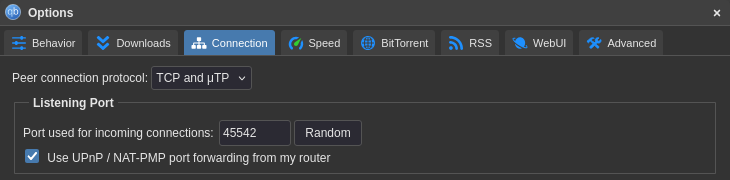
While configuring port forwarding on your router, set qBittorrent to use a fixed listening port A network endpoint used by a torrent client to communicate with other peers. (A "door" that lets network traffic reach the client. Without an open incoming port, a peer may have fewer opportunities to connect directly to other peers, which can result in limited download and upload speeds.) . For the port number, a higher, non-standard port is a reasonable choice. For example, you could use a port in the 40000—65535 range, such as 45542.
In qBittorrent, go to Tools - Options - Connection. Enter the port you configured for port forwarding on your router, or generate a random port and use it instead. Then click Save to save the changes. Make sure the port matches the port specified in your router's port-forwarding settings.
You may also want to assign a static internal IP address to the device running qBittorrent through your router. This prevents the device's local IP address from changing, which could otherwise cause your router's port-forwarding rule to stop working. The steps vary depending on the router, so refer to a guide for your specific router model.
For example, if you have a NETGEAR R7000 router, you can search for something like:
How to assign static IP addresses to local devices Netgear R7000
After configuring the router and qBittorrent, test whether the port is reachable from the internet using an online TCP port checker such as ping.pe.
We can check the port by visiting: https://tcp.ping.pe/69.182.26.157:51633 in a browser.
Simply replace the IP address and port with your own: https://tcp.ping.pe/{IP_ADDRESS}:{PORT}
If the checker reports that the port is open, your port forwarding is working correctly.
# V. Why use a seedbox (Server)
A seedbox is basically a server that runs a torrent client. Instead of running the client on our computer, the service runs on a server and stays online 24/7, even when our own computer is turned off. It is usually set up with a fast internet connection, allowing it to exchange more data with peers at once.
After a few iterations with desktop clients over the years, I finally decided to move to seedboxes. Currently, my setup runs on a cloud instance A virtual computer running on a cloud provider's servers, including VPS, virtual machines, and other cloud services. (You can use it like a remote computer to run websites, applications, or other services.) alongside a local system. The local system was designed with energy efficiency in mind, using a Raspberry Pi and an external HDD that can run entirely on batteries and solar power. Even under full load, it consumes less than 20 watts.
Due to
ISP throttling
⚠️ The deliberate reduction of network speeds by an ISP for certain types of traffic, users, or during certain conditions. (Your ISP may intentionally slow certain traffic or your connection.)
and limitations of the home internet connection, the local seedbox was deliberately configured with a limited upload speed using dynamic
QoS
⚠️ Quality of Service: A network feature that prioritizes or limits certain types of traffic to help manage bandwidth and prevent one device or service from affecting others.
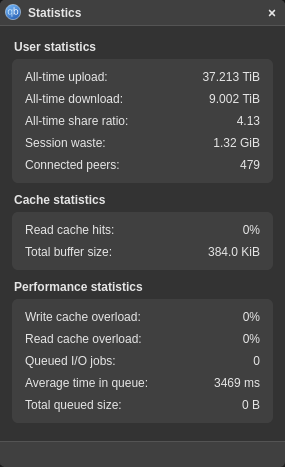
to avoid affecting other devices on the network. Despite this, after approximately one year of activity, it has reached
30+ TB of uploads
 .
.
As for the cloud instance, it has a better network connection and doesn't have the same NAT and port-forwarding limitations as a typical home network, so some of the workload is now handled there. With a 1 Gbps connection, seeding speeds can reach around 200 Mbps on most days (The disk isn't particularly fast, though, so torrenting's
random I/O
Reading or writing data from different locations on a storage device, rather than in a continuous sequence. (In simple terms, jumping around the storage to access different pieces of data.)
prevents it from saturating the connection). That's roughly
1-2 TB of outbound traffic
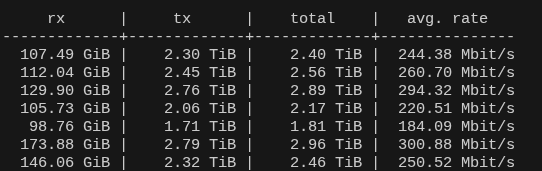 per day.
The interesting thing about BitTorrent isn't simply that it lets us download Receiving pieces of the torrent from other peers. (You're getting parts of the file from other people.) files.
But also distribute them.
We download something, and then we can become a source (seeder Seeds (Seeders): Peers that have the complete content and can upload it to others. (People who already have the file are sharing it.) ) for the next person. A seedbox simply takes that idea and puts it on a 24/7 server. But a fast connection isn't a requirement to participate. Even a 5 Mbps connection can continue seeding from a home computer, an unused phone, or another device, contributing whatever bandwidth it can spare. It might take longer to seed the same amount of data, but every piece shared can help another peer.
# VI. Other torrent terms
| Term | What it means |
|---|---|
| Info hash | A hash that identifies a torrent's metadata and is commonly used in magnet links. (Like a fingerprint for the torrent.) |
| Tracker | A server that tells a torrent client which peers are participating in a torrent. It doesn't normally transfer the actual files. (It's like a meeting point that helps peers find each other.) |
| DHT | Distributed Hash Table. A decentralized system that lets clients find peers without relying entirely on trackers. (Distributed meeting points, where instead of asking one server, clients can help each other find other peers.) |
| Swarm | All the peers participating in a particular torrent, including both downloaders and seeders. (The whole group of people sharing the same torrent.) |
| Ratio | The amount uploaded divided by the amount downloaded. A ratio of 1.0 means you uploaded as much as you downloaded. (e.g. if the downloaded file is 3 GB and you uploaded 6 GB, then the ratio for that torrent would be 2.0.) |
| ⚠️ Restricted Network | A network operated by an organization such as a school, university, research institution, government organization, or company. These networks may monitor, restrict, or block traffic, including BitTorrent, due to bandwidth or other policies. (It's recommended to use a VPN or proxy while torrenting on these networks.) |
| 🔴 Hit-and-Run | A peer that downloads a torrent and leaves without contributing significant upload or reaching at least a 1.0 sharing ratio. (They take the file but leave without giving much back to the other peers.) |
| 🔴 PCDN Leeching | A pattern where peers repeatedly download the same resources, sometimes using large numbers of connections or devices, while contributing little or no useful upload back to the swarm. (The behavior was initially observed primarily from Chinese peers, linked with PCDN related activities, but can now also appear from IP addresses outside China. Abusive peers can be blocked using tools like PeerBanHelper.) |
# Sources & Notes:
CDN pricing / CDN cost calculator / Bram Cohen / Ubuntu Releases / U.S. Copyright Office: The Digital Millennium Copyright Act [Archived] / Reddit: What is wrong with some China peers / Seeing infinite requests from peers / FRP / Movie: TPB AFK: The Pirate Bay Away from Keyboard (2013) / Movie: The Internet's Own Boy: The Story of Aaron Swartz (2014)
⚠️ Note: External resources are provided for informational purposes only. Use caution when visiting or interacting with third-party websites.